
Free Subscription Tracker: See What You Pay Every Month and Year
Short answer: a subscription tracker is a list of everything that charges you on repeat, with what it costs per month and per year, when it renews and whether you’re keeping it. Use the free tracker below: add each subscription, mark it Keep, Review or Cancel, and it adds up your monthly and yearly totals, shows what renews in the next 30 days, and tells you what canceling would save. It works on your phone, prints in one tap, and exports to a spreadsheet.
Your list is saved only in this browser on this device. There’s no account and no bank login, and nothing you type is sent to Kalm Kode. Below the tool is a guide to finding every subscription, deciding what stays, canceling the ones that go, and what to do if charges keep coming. Last checked November 10, 2026, against the FTC, the CFPB, Apple, Google Play and PayPal (sources at the bottom). Kalm Kode is an independent guide.
No subscriptions yet. Start with what your phone’s subscription page shows, then work through your card statements.
Saved only in this browser on this device. No account, no bank login, nothing sent to Kalm Kode.
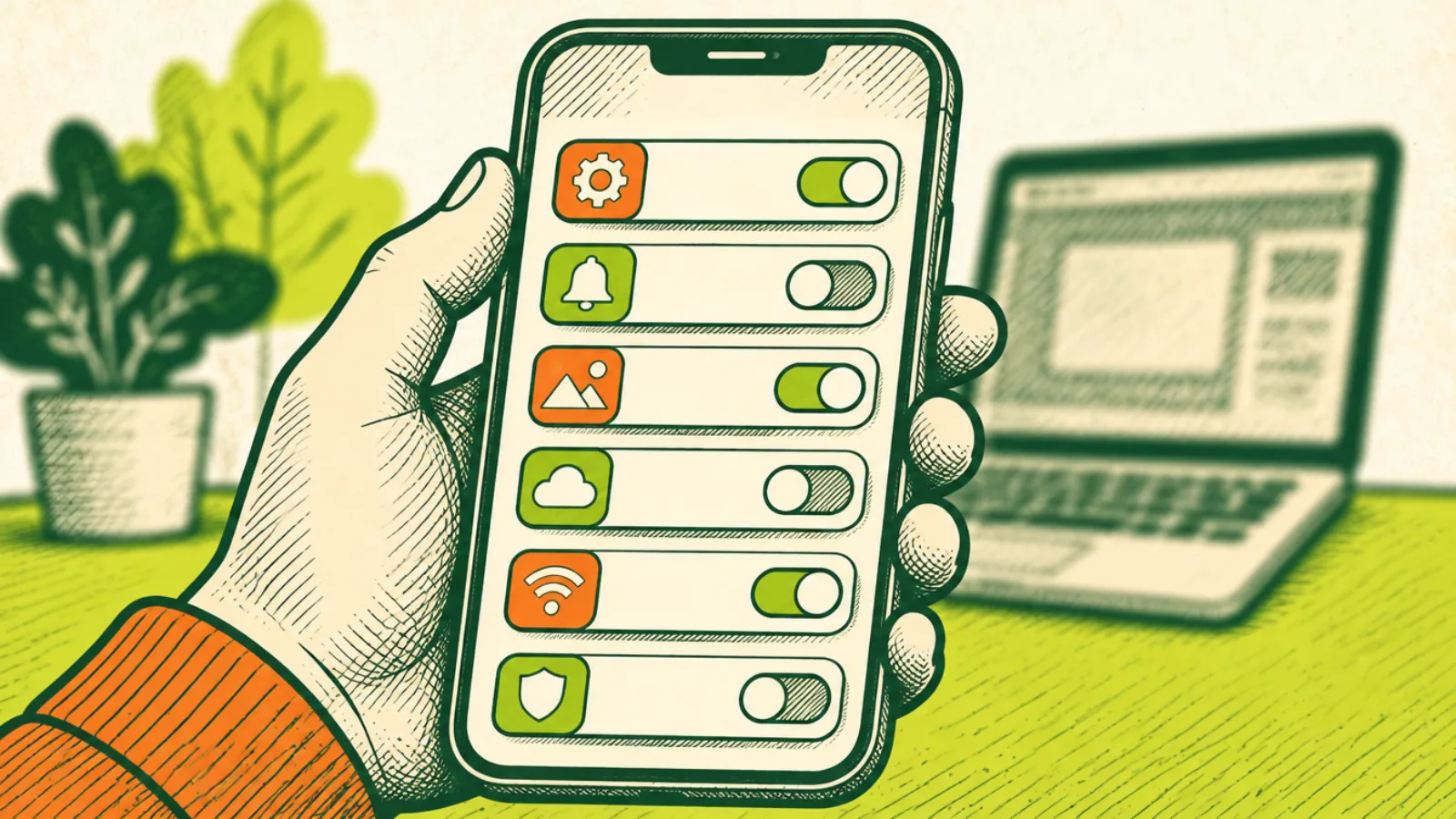
How to use the tracker
- Add what you already know. Type the name, the cost and how often you pay. Monthly is the default; yearly, every 3 months, every 6 months and weekly are there too.
- Add the next charge date if you have it. The tracker rolls it forward on its own, so a monthly date from last month still shows the right upcoming charge.
- Pick a decision. Everything starts as Review. Switch it to Keep or Cancel as you decide, right on the card.
- Watch the totals. Per month and Per year update as you go. “Estimated savings from Cancel” adds up what the Cancel pile costs you in a year. It’s an estimate, since some plans have payments left even after you turn off renewal.
- Set reminders. “Add reminder” downloads a calendar file for that subscription. It repeats on the same schedule as the charge and alerts you three days before.
- Print or download. “Print my list” prints a clean one-page table. “Download CSV” opens in Excel, Numbers or Google Sheets.
Edit fixes a typo or a price change. Remove deletes one item. Clear all asks you to tap twice so you don’t wipe the list by accident.
Why the yearly number matters
Subscriptions are priced to feel small. A charge that shows up as a few dollars a month barely registers on a statement. The tracker shows every subscription’s yearly cost on its card because that’s the number that changes decisions.
The math is simple, and the tracker does it for you:
- Monthly: the cost times 12.
- Every 3 months: the cost times 4.
- Every 6 months: the cost times 2.
- Weekly: the cost times 52.
- Yearly: the cost itself.
Going the other way, Per month spreads yearly and quarterly charges out so you can compare everything on the same footing. A yearly plan that looks expensive on the day it renews is sometimes the cheaper option per month, and a cheap-looking weekly charge often isn’t.
Monthly or yearly: which plan to pick
Many services offer a lower price per month if you pay for a year up front. That’s a good deal only if you’re sure you’ll use it all year. A quick way to decide: count how many months you used the service last year. If it’s fewer than the months the yearly price covers, monthly is cheaper for you, because you can cancel during the months you don’t use it.
Put both options in the tracker side by side if you’re unsure. Add the monthly version, look at Per year, then edit it to the yearly price and compare. Delete whichever you don’t pick.
When a price goes up
Prices change. When you get an email about a new price, open the tracker, tap Edit on that subscription and update the cost. The totals adjust right away, which makes it easy to see whether the service still earns its spot. A price increase is also a good moment to check for a cheaper plan with the same company, or to move it to Review with a reminder before the new price kicks in.
Step 1: Find every subscription
Most people undercount their subscriptions because they live in different places: some billed through a phone’s app store, some through PayPal, some straight to a card. Check each of these once and add what you find.
Your iPhone or iPad
Apple’s steps: open Settings, tap your name, then tap Subscriptions. Tap any subscription to manage it, then Cancel Subscription. On a Mac, open the App Store, click your name, then Subscriptions. You can also sign in at account.apple.com. Apple says that if there’s no cancel button, or you see an expiration message in red, the subscription is already canceled. Source: Apple Support.
Your Android phone
In Google Play, go to Subscriptions, pick the one you want, then tap Cancel subscription and follow the steps. Google says uninstalling the app does not cancel the subscription. Source: Google Play Help.
PayPal
PayPal lists automatic payments in your account settings under payments, in a list named “Subscriptions and saved businesses” or “Automatic Payments.” Pick the business to see the details and cancel the automatic payment. The details also show the business’s contact information. Source: PayPal Help.
Card and bank statements
This is where the rest hide. Pull up three months of statements for every card and checking account, because monthly charges repeat and stand out side by side. Then scan the last twelve months for yearly renewals, which show up only once. Look for:
- The same business name or amount in more than one month.
- Small charges you don’t recognize.
- Charges with words like “membership,” “premium,” “plus” or “renewal.”
- A charge that went up since last time.
Your email
Search your inbox for “receipt,” “renewal,” “subscription,” “your plan,” “free trial” and “auto-renew.” Welcome and receipt emails often name the plan and the price, and they usually explain how to cancel.
Places subscriptions hide
Some recurring charges don’t look like subscriptions at all. Check for these while you’re in your statements and accounts:
- Phone and internet add-ons: device protection, extra lines you no longer use, premium channels or add-on packages bundled into the bill.
- Warranties and protection plans bought with an appliance, a laptop or a phone, often billed monthly.
- Memberships that renew yearly: warehouse clubs, roadside assistance, delivery and shipping memberships.
- Cloud storage on a phone, a computer and an email account at the same time.
- Smart TV, game console and streaming device stores, which can bill separately from your phone.
- Website, domain and software renewals for a side business or a hobby.
- Family members’ accounts that bill to your card.
None of these are bad on their own. They just belong on the list so you can see them.
Step 2: Decide what stays
Once everything is on the list, go through it one card at a time. Four questions settle most of them:
- Did I use it in the last 30 days? If not, mark it Cancel or Review.
- Do two of these do the same thing? Two music services, two cloud storage plans or three streaming services you rotate through are common doubles.
- Is there a cheaper plan? An ad-supported tier, a family plan you already pay for, or a student or annual plan can cost less per month.
- Would I sign up for this today at this price? If the honest answer is no, it’s a Cancel.
Family and shared plans
Shared plans are where doubles pile up. One person pays for a family music plan while someone else in the house pays for their own. Two people each pay for cloud storage that one family plan would cover. Go through the list with the people you live with, and use the note field to record who uses what and who pays. Before you cancel a shared plan, check who else is on it, so nobody loses access by surprise.
Review is for anything you’re not sure about. Give it a date: set a reminder for a few days before the next charge and decide then. Rotating works well for streaming. Keep one service at a time, cancel when you finish what you wanted to watch, and pick it back up later.
Step 3: Cancel the way that sticks
The FTC says to follow the company’s cancellation instructions, then keep a copy of your cancellation request along with notes about any conversations you had about canceling. After that, watch your bank and card statements for charges after the date you canceled. Source: FTC.
In practice:
- Cancel where you signed up. A subscription bought through Apple or Google Play is canceled there, not in the app and not on the company’s website.
- Take a screenshot of the confirmation screen, and save the confirmation email.
- Write the date in the tracker’s note field, like “canceled Nov 10, confirmation saved.”
- Keep the card on the list marked Cancel until the next billing date passes with no charge. Then remove it.
Canceling usually doesn’t end access right away. Google’s example: someone who buys a yearly plan on January 1 and cancels on July 1 keeps it through December 31 and isn’t charged again. Some plans work differently: Google says that once a payment plan has been charged, you can’t cancel the remaining payments for it. Check for payment plans, installments or minimum terms before you count the savings. Source: Google Play Help.
Free trials: the subscription you didn’t mean to start
Free trials are the most common way a subscription you didn’t plan on ends up on your card. The FTC’s advice before you sign up:
- Read the terms so you know how long the trial lasts and how to cancel.
- If it’s not clear how to cancel, walk away.
- Watch for pre-checked boxes and uncheck anything you don’t agree to.
- Mark your calendar for the day the trial ends.
Source: FTC.
Add the trial to the tracker the day you start it, with the trial end as the next charge date and the decision set to Review. Then tap Add reminder. Apple says to cancel a trial at least 24 hours before it ends if you don’t want it to renew. Source: Apple Support.
If charges keep coming after you cancel
On a credit card
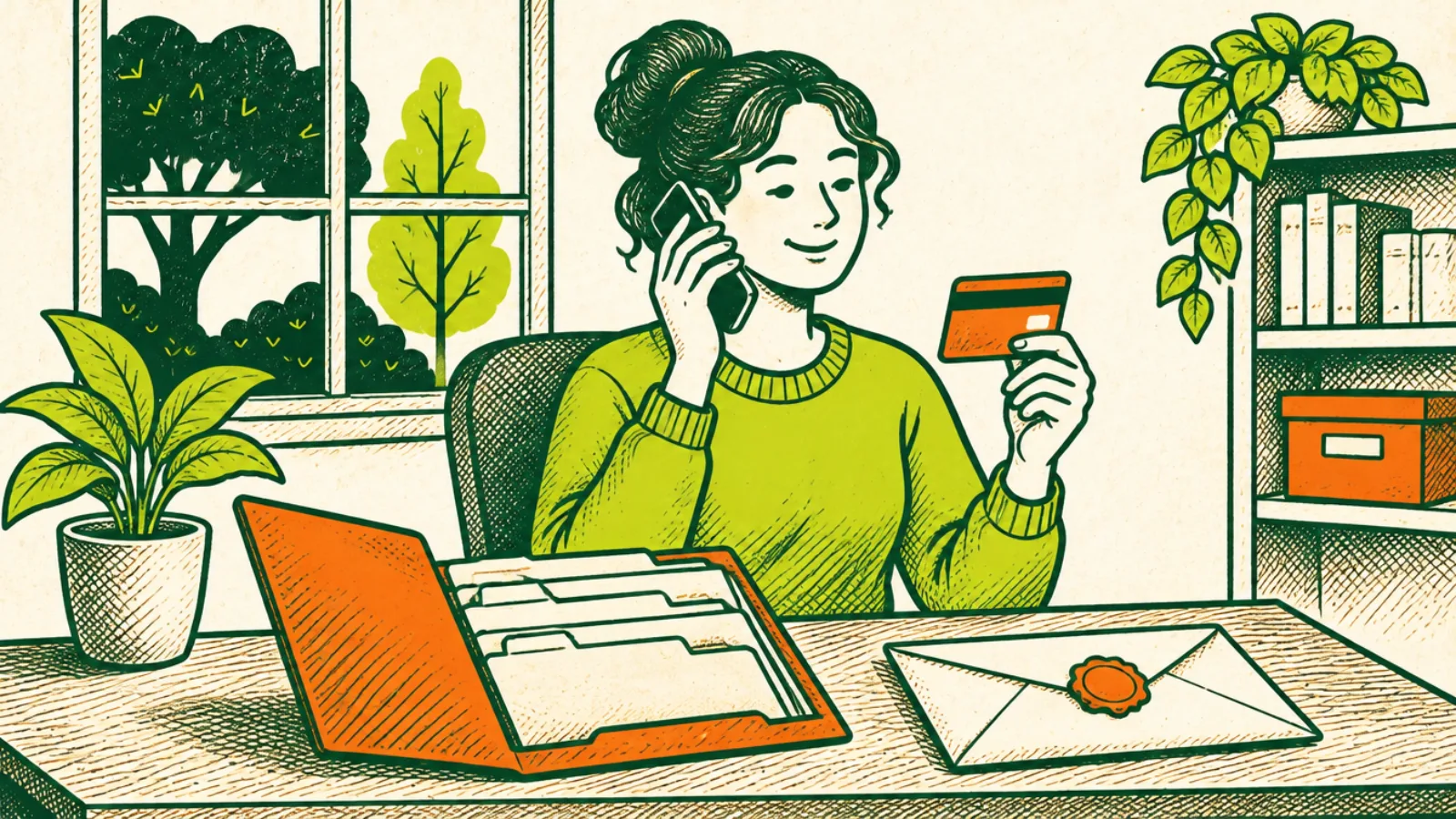
The FTC says to dispute the charge with your card company. For a billing error, send your letter so it reaches the issuer within 60 days after the first bill with the error was sent to you, using the address for billing inquiries, not the payment address. The issuer must acknowledge your complaint in writing within 30 days, unless it’s already resolved, and resolve it within two complete billing cycles, and in no case more than 90 days. While it investigates, you can withhold payment on the disputed amount and related charges, but you still pay the rest of the bill. Source: FTC.
Use the card issuer’s written dispute process. Federal billing-error rules are built around a written notice sent to the address the issuer gives for billing errors. An online or electronic dispute counts only if the issuer says it accepts billing error notices that way, so a phone call alone may not protect those rights. Source: CFPB: Regulation Z, § 1026.13.
From your bank account
The CFPB’s steps for stopping automatic payments from a bank account:
- Tell the company you’re taking away your permission for automatic payments, then follow up in writing or by email.
- Tell your bank or credit union that you’ve revoked the company’s authorization, and follow up in writing.
- Ask about a stop payment order if your bank recommends one. These usually carry a fee.
- Keep records of your requests and the dates. If a payment goes through after you revoked permission, ask your bank for a refund.
- Watch your account and report anything unauthorized right away.
Timing matters. Under federal rules for electronic transfers, you can stop a preauthorized payment by telling your bank or credit union, by phone or in writing, at least three business days before the payment is scheduled. If you call, the bank can require written confirmation within 14 days. Source: CFPB: Regulation E, § 1005.10.
The CFPB also notes that stopping automatic payments doesn’t cancel what you owe. You still need to cancel the service itself. Source: CFPB.
Where to report a problem
The FTC says you can report problems to the FTC at ReportFraud.ftc.gov and to your state attorney general. In Maryland, that’s the Attorney General’s Consumer Protection Division. In DC, it’s the Office of the Attorney General’s consumer protection office.
A worked example
Here’s how one sitting with the tracker can go. The numbers are made up for illustration, not real prices.
Jordan adds what the iPhone Subscriptions page shows: a music app at $11 a month and a photo storage plan at $3 a month. PayPal shows a meal kit at $60 a month. The card statements turn up two streaming services at $16 and $12 a month, a fitness app at $70 a year, and a news site at $4 a week Jordan forgot about.
The tracker shows Per month at about $125 and Per year at about $1,502. The weekly news charge alone works out to $208 a year.
Jordan marks the news site and one streaming service Cancel, puts the meal kit on Review with a reminder before the next charge, and keeps the rest. “Estimated savings from Cancel” shows $352 a year. Jordan cancels both that night, screenshots the confirmations, writes the date in the notes, and taps Print my list to stick on the fridge.
What to write down for each subscription
The tracker keeps each entry short on purpose. Here’s what each field is for:
- Name: whatever you’ll recognize. If the statement name is different from the brand, put the statement name in the note so you can match it later.
- Cost and how often: exactly what you’re billed and on what schedule. If the price went up, edit it so the totals stay honest.
- Next charge: the date it bills next. One past date is enough; the tracker moves it forward.
- Paid with: the card, bank account, PayPal, Apple or Google Play. This tells you where to cancel and where to look for the charge.
- Decision: Keep, Review or Cancel.
- Note: how to cancel, who uses it, or the date you canceled and where the confirmation is saved.
This tracker or an app that links to your bank?
Some budgeting apps find subscriptions automatically by connecting to your bank or card accounts. That saves typing, and the trade-off is giving an app access to your financial accounts. This tracker takes the other approach: you type what you see, it never asks for a login, and the list stays on your device. Many people find that typing each one in is part of the point, because it makes you look at every charge once.
Either way, the steps are the same: find everything, decide, cancel the right way, and check the next statement.
Make it a habit
A one-time cleanup helps. A small routine keeps it from creeping back:
- Every month: glance at the tracker’s “next 30 days” count and check one statement for anything new.
- Every time you sign up for something: add it to the tracker the same day, with a reminder.
- Every six months: run Step 1 again. Prices change, and trials turn into charges.
- Every year: look at the yearly renewals before they hit, since they’re the biggest single charges.
For more quick wins like this, see Make Life Easier, where canceling a subscription the way that sticks is fix 13, and the full Life Hacks library.
Common mistakes
- Deleting the app and calling it canceled. Google says uninstalling doesn’t cancel the subscription.
- Canceling in the wrong place. If you subscribed through Apple or Google Play, cancel there.
- Not saving proof. The FTC says to keep a copy of your cancellation request and notes.
- Forgetting yearly renewals. They show up only once a year on your statement, so they’re easy to miss.
- Stopping the bank payment but not the service. The CFPB says that doesn’t cancel what you owe.
- Starting a free trial without a reminder. Add it to the tracker the same day.
FAQ
What is a subscription tracker?
A list of everything that charges you on repeat, showing the cost per month and per year, the next charge date and whether you’re keeping it. This one does the math, shows what renews in the next 30 days, and prints or exports your list.
Is this subscription tracker free?
Yes. There’s no account, no bank login and no sign-up. Your list stays in this browser on this device.
Where is my list saved?
In your browser’s local storage on this device. It’s not sent anywhere. If you clear your browser data or switch devices, it won’t follow you, so tap Download CSV to keep a copy.
How do I find all my subscriptions?
Check your phone’s subscription page (Apple or Google Play), PayPal’s automatic payments, three months of card and bank statements, twelve months for yearly charges, and your email for receipts and renewal notices.
How do I cancel a subscription on iPhone?
Apple says to open Settings, tap your name, tap Subscriptions, pick the subscription and tap Cancel Subscription.
Does deleting an app cancel the subscription?
No. Google says uninstalling the app doesn’t cancel the subscription. Cancel it in Google Play, or in Settings on an iPhone.
What if I keep getting charged after I cancel?
The FTC says to dispute the charge with your card company. For bank account debits, the CFPB says to revoke the company’s permission with both the company and your bank, and keep records.
How can a calendar reminder help?
Tap Add reminder on any subscription with a next charge date. You get a calendar file that repeats with the charge and alerts you three days before, so you can decide before you’re billed.
Sources
Checked November 10, 2026:
- FTC: Free Trials, Auto-Renewals and Subscriptions
- FTC: Using Credit Cards and Disputing Charges
- CFPB: Regulation Z, § 1026.13 Billing Error Resolution
- CFPB: Regulation E, § 1005.10 Preauthorized Transfers
- CFPB: How do I stop automatic payments from my bank account?
- Apple Support: View, change or cancel your subscriptions
- Google Play Help: Cancel, pause or change a subscription
- PayPal Help: Automatic payments
- FTC: ReportFraud.ftc.gov
- Maryland Attorney General: Consumer Complaints
- DC Office of the Attorney General: Consumer Protection