
Before You Get Rid of a Phone or Computer: Back Up, Sign Out, Reset

Short answer: before a phone, tablet or computer leaves your hands, do four things in this order: back it up, sign out of your accounts (especially Apple’s Find My or your Google Account), erase it with the maker’s own reset, and take out the SIM card or memory card. Then pick where it goes: trade-in, sale, donation, a family member, or a certified electronics recycler. Skip a step and you either lose your stuff or hand someone a device they can’t use.
In Prince George’s County or DC? Both take electronics through county or city programs, so you don’t need to pay a recycler (details below).
Last checked November 10, 2026, against Apple, Google, Microsoft, FTC, EPA, Prince George’s County and DC DPW sources (listed at the bottom). Kalm Kode is an independent guide. Your device maker’s current instructions win if anything below differs.

The 30-second version
- Back up first. Photos, contacts, messages, documents, two-factor apps and anything you’d miss.
- Sign out of the big account. On an iPhone or Mac, your Apple Account. On Android, remove your Google Account. This turns off the lock that stops a new owner from setting it up.
- Erase with the built-in reset. Deleting files one by one isn’t enough. Use the maker’s reset.
- Pull the SIM and memory card. Unless you’re handing the phone to a carrier for trade-in and they tell you otherwise.
- Clean up after. Remove the old device from your trusted devices list and your accounts.
- Then pick the exit. Trade-in, sell, give, donate or recycle with a certified recycler or a local program.
Why the order matters
Each step depends on the one before it. If you erase before you back up, your photos are gone. If you erase before you sign out of Find My or your Google Account, the device may still be locked to you, and the next person can’t set it up. That can cause a sale or trade-in to fail.
So follow the order, even if you’re in a hurry:
- Back up.
- Move or turn off anything tied to the device.
- Sign out.
- Erase.
- Remove cards.
- Clean up your account lists.
- Hand it off.
Step 1: Back up what you want to keep
The FTC’s advice for old computers starts here: decide what to keep, then move it to a new computer, the cloud or an external drive.
What to back up:
- Photos and videos. The thing people regret losing most. Confirm they show up in your cloud photo library or on your new device before you erase anything.
- Contacts and calendars. Usually synced to your Apple, Google or Microsoft account already. Check.
- Messages. Text and chat history may need its own backup inside the app.
- Documents and downloads. Especially on computers, where files often live only on the desktop or in a Downloads folder.
- Two-factor authenticator codes. Move them to your new phone before you wipe the old one. How you move them depends on the app, so follow its own transfer steps, then test a sign-in on the new phone before you erase the old one.
- Passwords. If they’re saved in a browser or password manager, make sure the new device has them.
How to back up:
- iPhone or iPad: Apple says to back up the device so you can move your information to the new one.
- Android: Google says to make sure your data is in your Google Account before a reset, and warns that apps and their data are uninstalled.
- Mac: Apple says that if you back up first, you can use the backup to restore your files to a new Mac.
- Windows or Chromebook: copy files to OneDrive, Google Drive or an external drive. Google says files in Google Drive or on external storage aren’t affected by a Chromebook reset.
Before moving on, open a few photos and files from the backup to make sure they’re really there.

Step 2: Move or turn off what’s tied to the device
Some things are paired to the phone or computer and need to be moved first:
- Apple Watch. Apple says to unpair your Apple Watch if it’s paired with the iPhone you’re giving up.
- Bluetooth accessories. For a Mac, Apple says to unpair accessories you’re keeping if they’ll stay in Bluetooth range, so they don’t send accidental input. If you unpair your only keyboard and mouse, Apple says you’ll need a USB keyboard and mouse to finish. For accessories you’re giving away with the Mac, check whether their names include your name and rename them.
- Messaging. On older Macs, Apple lists signing out of iMessage as a step.
- Authenticator apps and banking apps. Some apps tie your account to one phone. Set them up on the new phone first, and test a sign-in there before you erase the old one.
- Your phone number. If you’re keeping your number, make sure the new phone works with it before you wipe the old one.
- iMessage. Apple says that if you’re switching to a non-Apple phone, deregister iMessage, so texts from iPhone users reach your new phone.
- Don’t clean out the old iPhone by hand. Apple warns that when you’re signed in to iCloud, manually deleting contacts, calendars, reminders, documents or photos removes them from iCloud and all your connected devices. Let the sign-out and erase steps handle it.
Step 3: Sign out of the account that locks the device
Modern phones and Macs have anti-theft locks. They’re great when a device is stolen and a headache when you sell one without signing out.
iPhone and iPad. Apple says to sign out of your Apple Account: go to Settings, tap your name, scroll down and tap Sign Out. Apple notes that when you erase the device, Find My and Activation Lock turn off, and you may need your Apple Account password if Find My is on.
Android. Google’s device protection means that after a factory reset, someone has to sign in with a Google Account that was on the device before. Google says that to turn off device protection, you remove your Google Account from the device. If you skip this, the new owner may be stuck at setup.
Mac. On Macs that can use Erase All Content and Settings, Apple says that’s the main step, and it handles the rest. On older Macs, Apple lists signing out of iCloud, deauthorizing iTunes on older macOS versions, and signing out of iMessage before you erase.
Windows. Sign out of your Microsoft account, OneDrive and any apps that limit how many computers you can use them on. If the drive is encrypted with BitLocker, Microsoft says to make sure you have your BitLocker recovery key before you reset.
Chromebook. Google’s instructions say to sign out first, then reset.

Step 4: Erase it with the maker’s reset
Dragging files to the trash doesn’t erase them. The FTC says to erase all your files from the hard drive and reset it to factory settings. Use the built-in tool for your device.
iPhone or iPad. Apple: Settings > General > Transfer or Reset, then Erase All Content and Settings. Enter your passcode if asked and confirm.
Android. Google says most phones reset through the Settings app, and steps vary by maker, so check your phone maker’s support site for exact steps. Know your Google Account password before you start. Google also says to wait 24 hours after changing that password before you reset.
Mac. On Macs with Apple silicon or the Apple T2 Security Chip running macOS Monterey or later, Apple says to use Erase All Content and Settings. Older Macs: erase the disk with Disk Utility in Recovery and reinstall macOS, and on Intel-based Macs reset NVRAM, per Apple’s steps.
Windows. Microsoft: on Windows 11, Settings > System > Recovery > Reset PC; on Windows 10, Start > Settings > Update & Security > Recovery. Choose Remove everything, and turn on the setting that cleans the drive. Microsoft recommends this if you’re planning to donate, recycle or sell your PC. It also says this erasure is meant for consumers and doesn’t meet government and industry data erasure standards.
Chromebook. Google calls it a Powerwash. Sign out, press Ctrl + Alt + Shift + R, select Restart, then Powerwash. Google says it erases all user data on the hard drive, including the Downloads folder. Work or school Chromebooks can’t be reset by the user; ask your administrator.
When it’s done, the device should start up to the “Hello” or setup screen. Setup asking a new owner to sign in to their own account is normal. The problem is if it asks for your account, the previous owner’s Apple Account or Google Account. That means the lock is still on: go back and sign out or remove the account.

Step 5: Take out the SIM and memory cards
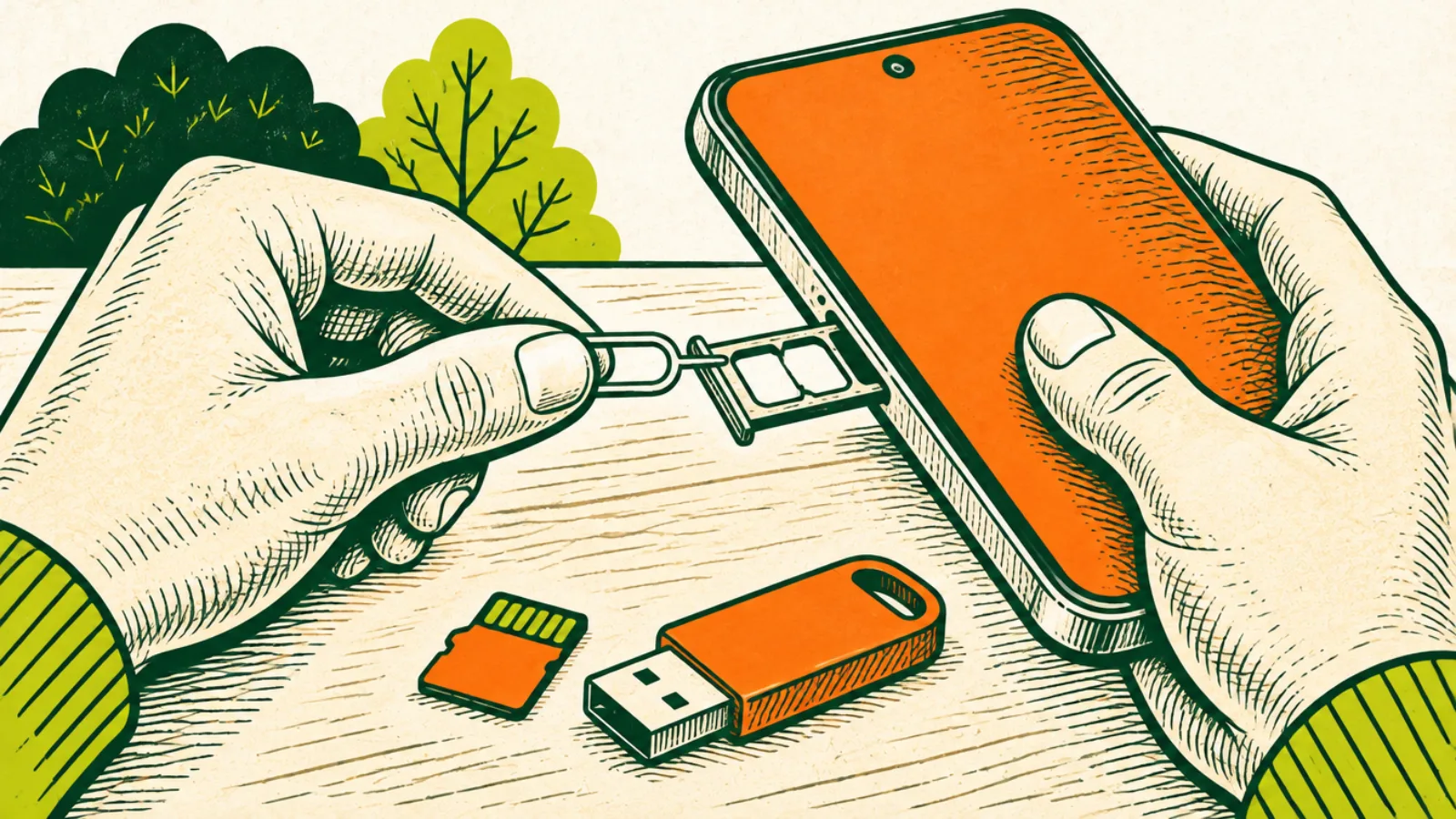
- SIM card. Pop it out with a SIM tool or a paperclip, unless you’re handing the phone to a carrier who asks for it.
- eSIM. Apple says to choose to erase the eSIM profile when you’re asked during the erase. If you’re keeping your number, set up service on the new phone first.
- Memory card. Many Android phones and some cameras and laptops have one. It’s easy to forget and holds photos.
- Discs and USB drives. Check the computer’s drives and ports.
- Phone case and screen protector. Not a privacy issue, but buyers like a clean phone and you may want the case.
Step 6: Clean up your accounts
The device is wiped, but your accounts may still list it.
- Apple: Apple says to remove your old device from your list of trusted devices.
- Google: check your Google Account’s devices list and remove the old phone.
- Microsoft: remove the old PC from your Microsoft account’s device list.
- Apps with device limits: music, video and software subscriptions sometimes cap how many devices you can use. Free up the slot.
Batteries and broken devices
If the device is going to recycling, the battery matters. EPA says lithium-ion batteries, and devices that contain them, don’t belong in household garbage or recycling bins. Take them to a battery or electronics drop-off instead.
- Only remove what’s meant to be removed. EPA notes that not all batteries are removable or serviceable by the user. Most phones and many laptops have built-in batteries. Leave those in.
- Loose batteries: EPA says to tape the terminals or put each battery in its own plastic bag to prevent fires.
- Damaged, swollen or leaking batteries: EPA says to contact the battery or device manufacturer for handling information.
A phone that won’t turn on can’t be reset the usual way. Back up from your cloud account if you can, then ask the trade-in program, the maker or a certified recycler how they handle data on devices that don’t power on.

Step 7: Pick the exit
Once the device is wiped, any of these works:
- Trade-in. Phone makers, carriers and some stores offer credit. Follow their prep instructions; some want Find My or the account lock off before they’ll accept it.
- Sell it. Wiped, signed out and with the box or charger if you still have them. Buyers check that the setup screen comes up.
- Give it to family. Erase it anyway. It keeps your accounts separate and avoids lockouts later.
- Donate it. Check that the charity takes electronics. In Prince George’s County, the county’s reuse page lists some organizations that accept electronics in good, working condition.
- Recycle it. EPA says donating or recycling electronics conserves natural resources and avoids air and water pollution. It points to its certified electronics recyclers page and to local programs.

Selling or trading in: what the other side checks
Whoever takes the device next will check a few things. Get ahead of them and the hand-off goes smoothly.
- It reaches the setup screen. A buyer or trade-in program will power it on. If it asks for your Apple Account or Google Account, it isn’t ready.
- It isn’t tied to an unpaid plan. If you’re still paying off a phone through your carrier, check with the carrier before you sell it.
- It’s the model and storage you listed. Look up the exact model in Settings before you write a listing.
- The condition matches the photos. Show the cracks, scratches and battery health honestly. Surprises lead to returns.
- Accessories. A charger, cable or original box can make a used device easier to sell. Keep your own headphones and cases if you want them.
For trade-ins, read the program’s own prep list before you ship or drop off. Many ask you to turn off Find My or remove your Google Account, erase the device and remove the SIM, the same steps above. Keep the confirmation email or receipt until the credit shows up.
Printers, consoles, smart speakers and other gadgets
Phones and computers aren’t the only devices that remember you. Before you pass along anything that connects to Wi-Fi or an account, look up the maker’s reset steps for that model.
- Game consoles. Sign out of your gaming account and remove saved payment methods, then use the console’s factory reset.
- Smart speakers, displays and doorbells. Remove the device from the maker’s app first, then reset it, so it doesn’t stay linked to your home.
- Printers. Some save Wi-Fi passwords, contacts and recent scans. Check the printer’s menu for a reset option.
- Tablets and e-readers. Same steps as phones: back up, sign out, reset.
- Old hard drives and USB drives. Back up what you want, then erase them before they go anywhere.
If a gadget won’t power on and you can’t reset it, treat it like any other electronics and take it to a recycling program rather than the trash.
In Prince George’s County, Maryland
- Curbside electronics pickup: the county runs an electronics recycling pickup booked through PGC311 for households that receive county trash and recycling collection. See PG County TV disposal for how it works.
- Drop-off: the county’s facilities list says the Brown Station Road Residential Drop-Off Convenience Center, 3501 Brown Station Road in Upper Marlboro, takes electronics such as computers, laptops and tablets. Hours are Monday to Saturday, 7:30 a.m. to 3:30 p.m.
- E-waste events: the county holds mobile household hazardous waste and electronics events for county residents.
- Phones and tablets: the county’s reuse page notes that MOM’s Organic Market takes cell phones and tablets, among a few other items.
- Not sure about an item? Try Can They Take This?

In Washington, DC
- Special waste events: DPW collects electronics at its special waste collection events. Registration is free and required, you bring your registration and proof of DC residency, and DPW says no entry is allowed after 2 p.m. Check DPW’s page for current dates and locations.
- Reuse DC: the District’s directory lists places to repair, donate and shop secondhand, including electronics.
Clearing out a whole room? See How to Declutter Your Home Without Just Moving the Piles.
Your device hand-off checklist
Before the reset
- ☐ Photos, contacts and files backed up and checked
- ☐ Authenticator codes and banking apps moved, with a test sign-in on the new device
- ☐ Apple Watch unpaired; Mac accessories you’re keeping unpaired
- ☐ New phone working with your number
Sign out and erase
- ☐ Signed out of Apple Account, or Google Account removed
- ☐ Microsoft account, OneDrive and app licenses signed out
- ☐ Maker’s reset done: Erase All Content and Settings, factory reset, Reset this PC or Powerwash
- ☐ Device starts at the setup screen without asking for your account
After
- ☐ SIM, eSIM and memory card handled
- ☐ Old device removed from your trusted devices and account lists
- ☐ Exit picked: trade-in, sale, gift, donation or recycler
- ☐ Batteries handled the right way if it’s going to recycling
Common mistakes
- Erasing before backing up. There’s no undo.
- Forgetting the authenticator app. Move two-factor codes first, or you’ll be locked out of accounts.
- Skipping the account sign-out. The next person can’t set it up, and the sale or trade-in can fail.
- Deleting files instead of resetting. Deleted files can be left behind.
- Leaving the memory card in. Your photos go with the phone.
- Pulling a built-in battery. Only remove batteries made to be removed.
- Tossing it in the trash. Lithium-ion batteries don’t belong in household bins.
FAQ
Is deleting my files enough before I sell a computer?
No. The FTC says to erase all your files from the hard drive and reset the computer to factory settings. Use the maker’s reset, like Reset this PC on Windows or Erase All Content and Settings on newer Macs.
What happens if I don’t sign out of my Apple Account or Google Account?
The device may stay locked to you. On Android, Google’s device protection asks for a Google Account that was on the device before. On iPhone, Apple says Find My and Activation Lock turn off when you erase, and you may need your Apple Account password if Find My is on.
How do I factory reset an Android phone?
Google says most phones reset through the Settings app, and steps vary by maker, so check your phone maker’s support site. Back up to your Google Account first and know your password.
How do I wipe a Windows PC before giving it away?
On Windows 11, Microsoft says to go to Settings > System > Recovery > Reset PC (on Windows 10, Settings > Update & Security > Recovery), choose Remove everything, and turn on the option that cleans the drive. Have your BitLocker recovery key if the drive is encrypted. Microsoft recommends this for donating, recycling or selling.
Should I take the SIM card out?
Yes, unless your carrier’s trade-in asks you to leave it. For an eSIM, Apple says to choose to erase the eSIM profile when you erase an iPhone.
Can I throw an old phone in the trash?
No. EPA says lithium-ion batteries and the devices that contain them don’t belong in household garbage or recycling bins. Use a drop-off, a trade-in or a local electronics program.
Where can I recycle a computer in Prince George’s County?
The county’s Brown Station Road convenience center lists computers, laptops and tablets among accepted items. Households with county trash service can also book electronics pickup through PGC311.
Where can I recycle electronics in DC?
At DPW’s special waste collection events. Register in advance (free), bring proof of DC residency and your registration, and arrive before 2 p.m.
Sources
Checked November 10, 2026:
- Apple: What to do before you sell, give away, or trade in your iPhone or iPad
- Apple: What to do before you sell, give away, trade in, or recycle your Mac
- Google: Factory reset an Android phone
- Google: Help prevent others from using your device without permission
- Google: Reset your Chromebook
- Microsoft: Reset your PC
- FTC: How to remove your personal information before you get rid of your computer
- EPA: Electronics donation and recycling
- EPA: Used lithium-ion batteries
- Prince George’s County: Waste, recycling and disposal facilities
- Prince George’s County: Recycling/Reuse Alternatives
- DC DPW: Household hazardous waste, e-cycling and document shredding
- Reuse DC