
Small Business Automation: What to Automate First
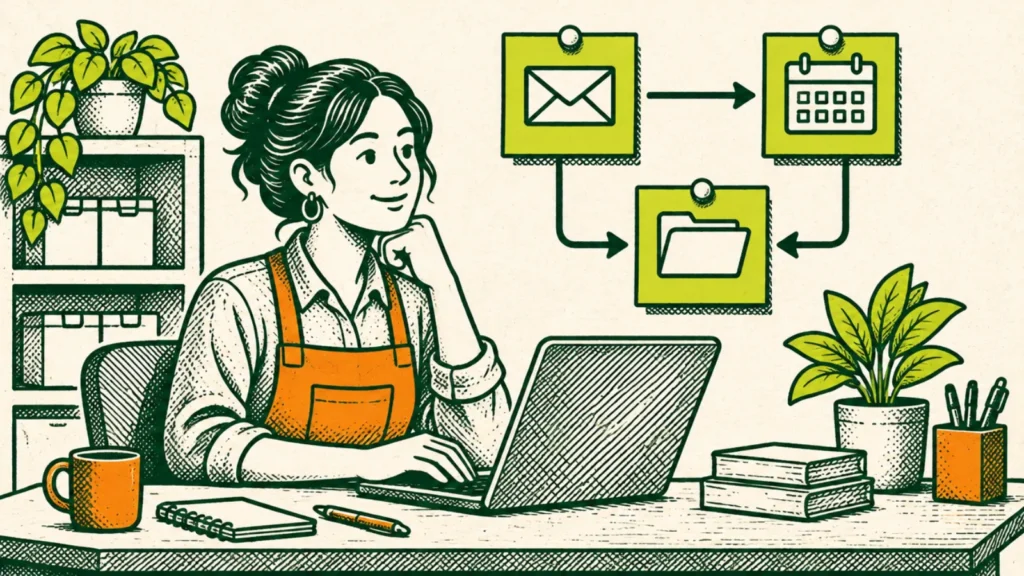
Short answer: automate the boring, repeated, rule-based tasks first. Usually that means how new requests come in, scheduling and reminders, invoices and receipts, file backups, and follow-ups. Leave pricing, refunds, complaints and anything a customer would want a person to handle for later, or keep a human checking it. Before you buy any tool, write down a normal week of tasks, pick the two or three that repeat the most and follow clear rules, and turn each into a written checklist. Then automate the checklist, not the mess.
This guide walks through how to choose, what usually comes first, the rules that apply once you send automated emails and texts or collect reviews, and what to leave alone.
Last checked November 10, 2026, against Federal Trade Commission, Federal Communications Commission, IRS and Cybersecurity and Infrastructure Security Agency (CISA) guidance (listed at the bottom). Kalm Kode is an independent guide, not a law firm or accountant. For legal or tax questions about your business, those agencies and your own advisers have the final word.
The 30-second version
- List a normal week first. Every task, how often it happens and how long it takes.
- Automate what’s repeated and rule-based. If you can write the steps down, it’s a candidate.
- Write the checklist before you pick a tool. A messy process automated is just a faster mess.
- Usual first wins: an intake form, booking and reminders, invoices and receipts, backups and follow-ups.
- Know the rules. Marketing emails fall under the FTC’s CAN-SPAM rules, texting rules depend on the kind of message and the technology used, and the FTC bans fake reviews and rewards tied to a positive or negative review.
- Keep a person in the loop for money, promises and anything customer-facing.
- Turn on multifactor authentication for every tool you connect.
What “automation” means here
For a small business, automation doesn’t have to mean robots or AI running the shop. Most useful automations are simple:
- A form that collects the same information every time instead of scattered texts and DMs.
- A template for the email you write five times a week.
- A reminder that goes out on its own the day before an appointment.
- A rule that files every receipt in one folder or labels every invoice email.
- A scheduled task, like a nightly backup or a weekly report.
- A handoff between two tools, like a form entry becoming a row in a tracker.
AI tools can help with drafting and sorting, but they work best inside a clear process, with a person reviewing what goes out.
Step 1: Write down a normal week
Before deciding anything, track what you actually do. For one normal week, write down every task that isn’t the core work you’re paid for:
- What the task is. “Reply to new inquiry,” “send invoice,” “move photos to the client folder.”
- How often it happens. Daily, weekly, per client.
- Roughly how long it takes. A guess is fine.
- What starts it. A new email, a booking, the end of the month.
- What can go wrong. A missed follow-up, a wrong amount, a lost file.
You don’t need software for this. A notes app or a sheet of paper works. The point is to see the work as it is, not as you remember it.
Step 2: Score each task
Now go down the list and ask four questions about each task:
- Does it repeat? The more often it happens, the more an automation pays off.
- Does it follow the same steps every time? If you can write them down, a tool can follow them.
- Is it low-risk if something goes slightly wrong? A reminder that goes out an hour late is fine. A wrong invoice amount isn’t.
- Does it have a clear trigger? “When a form is submitted” or “the first of the month” is easy to automate. “When it feels right” isn’t.
Tasks with four yeses go first. Tasks with a “no” on question 3 can still be automated later, with a review step built in.
Step 3: Turn the task into a checklist first
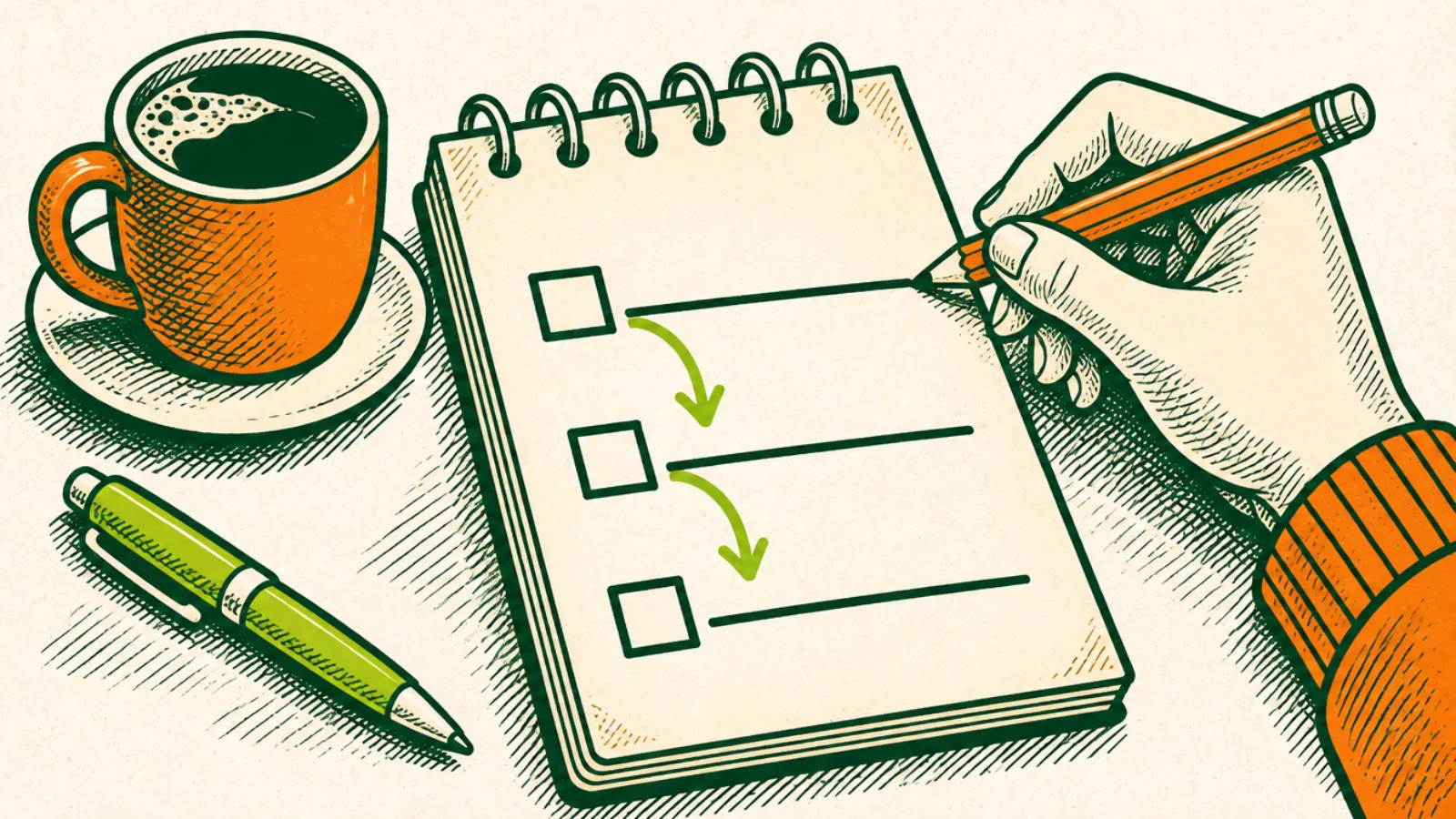
The step most people skip. Before you open any automation tool, write the task as a checklist with three parts:
- Trigger: the event that starts it.
- Steps: the actions, in order.
- Exception: when to stop and who takes over.
For example, a new-inquiry checklist might be: Trigger: a new form submission. Steps: send a confirmation email, add the person to the tracker, flag it for a reply within one business day. Exception: if the request is outside what you offer, a person replies instead of the template.
A written checklist does two things. It shows you whether the process actually makes sense, and it becomes the instructions for the automation, or for the person who helps you build it.

What to automate first
These are the areas that usually come first for small businesses, roughly in order. Your list from Step 1 decides the real order.
1. How new requests come in
If inquiries arrive by text, DM, email and voicemail, things get lost. One form with the questions you always ask fixes a lot:
- Ask what you always ask. Name, contact, what they need, timing.
- Send an automatic confirmation so people know it arrived.
- Send every entry to one place, like a tracker or a single inbox label.
Keep the confirmation focused on the request. Under the FTC’s CAN-SPAM guidance, whether an email counts as commercial or transactional depends on its primary purpose, and the FTC reads the transactional categories narrowly. So don’t assume an acknowledgment is automatically exempt. Once you add promotions, it looks more like a commercial email, covered below.
2. Scheduling and reminders
Back-and-forth about times is a classic time sink:
- Use a booking link with your real availability.
- Send automatic confirmations and reminders before appointments.
- Get and record permission before texting. It’s the simplest good practice. The legal rules depend on the message and the technology: the FCC says autodialed or prerecorded calls and texts to a wireless number need the person’s oral or written consent, and prerecorded telemarketing calls need prior written consent. Marketing texts generally face stricter rules than informational reminders about an appointment someone booked. People can opt out of robocalls and robotexts at any time and in any reasonable way, even after agreeing. So ask at booking, keep a record of the yes, keep reminders about the appointment, and make stopping easy.
3. Invoices, receipts and records
Money tasks repeat and pile up, but they also carry more risk, so automate the routine parts and keep a review step:
- Use invoice templates with your standard terms.
- Set automatic payment reminders for overdue invoices.
- Send every receipt to one folder or your bookkeeping tool, by email rule or app.
- Review before anything goes out that has a new amount or new terms.
Keep records long enough. The IRS ties most of its time periods to the period of limitations, which generally starts when you file the return (an early return counts from the due date). The IRS says:
- 3 years in most cases.
- 6 years if you don’t report income you should have, and it’s more than 25% of the gross income shown on your return.
- 7 years if you claim a loss from worthless securities or a bad debt deduction.
- At least 4 years for employment tax records, counted from the date the tax becomes due or is paid, whichever is later.
- Indefinitely if you don’t file a return or file a fraudulent one.
- Property records until the period of limitations expires for the year you dispose of the property.
The IRS also notes that insurance companies or creditors may require you to keep records longer, so check other obligations before deleting anything. An automatic receipt folder makes that much easier.
4. Files and backups
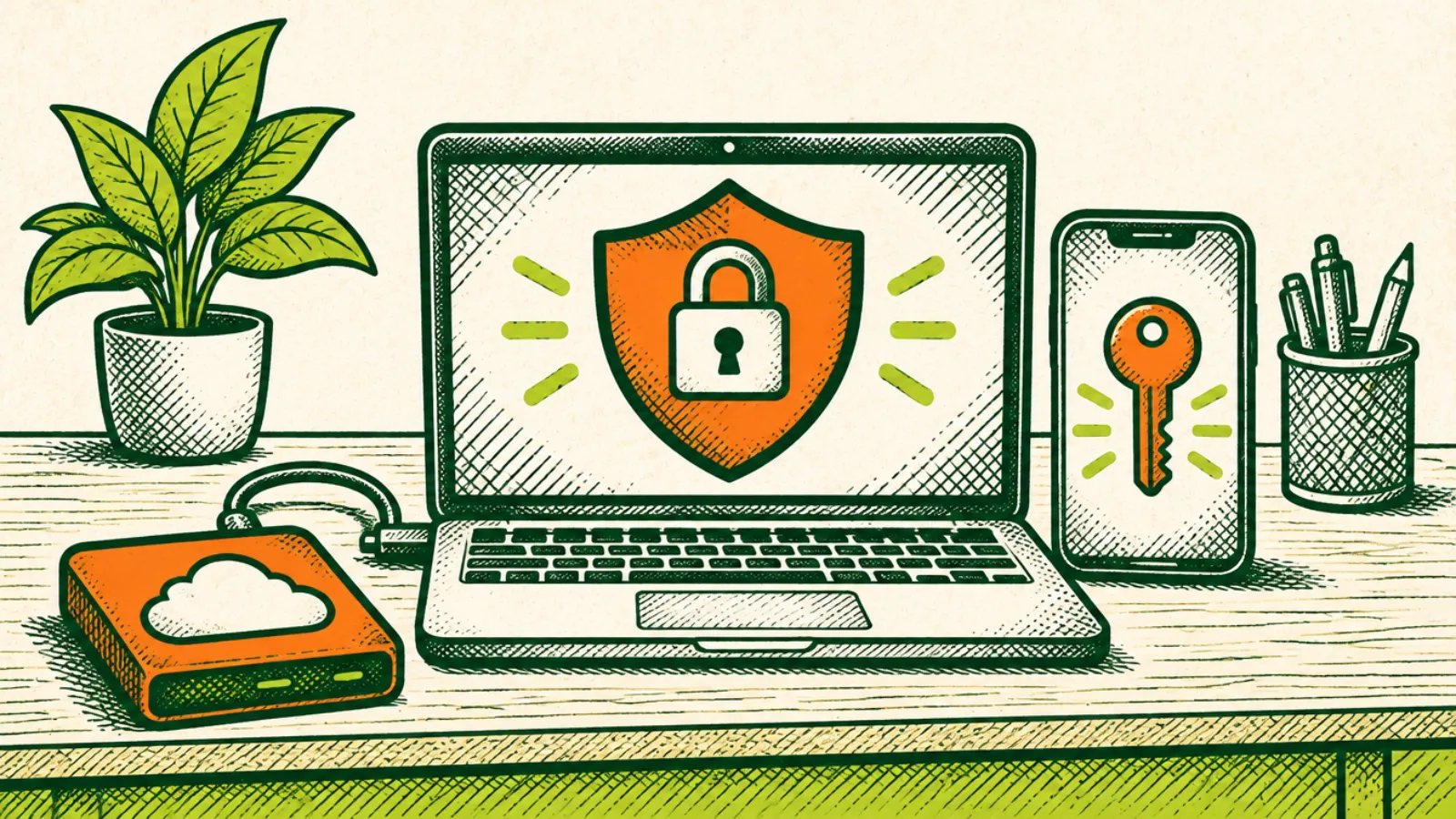
Lost files are a quiet disaster. The FTC’s cybersecurity basics for small businesses say to back up important files offline, on an external hard drive, or in the cloud. Make it automatic:
- Schedule backups so they happen without anyone remembering.
- Use one naming pattern for client folders and files, so search actually works.
- Keep software updated. The FTC recommends keeping apps, browsers and operating systems current, ideally with automatic updates.
5. Account security (part of every automation)
Every tool you connect is another login. Building security in from the start:
- Turn on multifactor authentication (MFA). CISA says MFA can prevent a significant number of account compromise attacks. It recommends requiring MFA wherever possible and using the strongest form available. Authenticator apps and security keys are stronger than codes sent by text or email.
- Give each tool only the access it needs. If an automation only needs to read a calendar, don’t give it access to everything.
- Know who can log in. When someone leaves, remove their access.
6. Follow-ups and reviews
Follow-ups are easy to forget and easy to automate: a thank-you after a job, a check-in a week later, a request for a review.
The FTC’s rule on fake reviews and testimonials, announced in August 2024, matters here. According to the FTC, it bans:
- Fake or false reviews, including reviews from people who don’t exist or that misrepresent someone’s experience, such as an AI-generated review that invents a customer or an experience. Buying or spreading reviews a business knew or should have known were fake is banned too. The problem is the fake content, not using a writing tool for your own honest marketing.
- Rewards tied to a particular sentiment. You can’t pay or reward people for positive (or negative) reviews.
- Undisclosed insider reviews from officers, managers and others with a material connection.
- Review suppression through baseless legal threats, intimidation or certain false accusations.
The FTC says the rule went into effect on October 21, 2024. If you offer an incentive for a review, the FTC’s guidance for marketers says it must not be conditioned, explicitly or implicitly, on the review being positive, and the review should disclose the incentive. Some review platforms ban incentivized reviews entirely, so check their rules first.
The safe automation: ask every customer the same neutral question after the job, the same way, without strings attached.
7. Marketing emails and posts
Scheduling posts and newsletters ahead of time is a big time-saver. Commercial emails, though, come with rules. The FTC’s CAN-SPAM compliance guide says marketing emails must:
- Use accurate header and “from” information.
- Have a subject line that matches the content.
- Identify the message as an advertisement.
- Include your valid physical postal address. A registered P.O. box or private mailbox counts.
- Tell people how to opt out, honor opt-out requests within 10 business days, and keep the opt-out working for at least 30 days after you send.
The FTC also says you can’t hand off responsibility: if someone sends marketing for you, both of you can be held responsible. And each violating email can carry a penalty of up to $53,088, according to the FTC.
What not to automate (yet)
Some tasks look repetitive but aren’t safe to leave to a tool, at least not without a person checking:
- Prices and quotes. Every quote has judgment in it.
- Refunds, complaints and disputes. People want a person.
- Anything that sounds like legal, medical, tax or financial advice.
- Messages that make promises, like delivery dates or guarantees.
- Sensitive personal information moving between tools you haven’t checked.
- Customer-facing chatbots running on their own. If you use one, keep a clear way to reach a person, and review what it says.
- Anything you couldn’t explain to a customer. If you wouldn’t want someone to see how it works, don’t automate it.
The test from Step 2 helps: if a small mistake would cost money, trust or a customer, keep a human review step.
Choosing tools without overbuying
Once the checklist exists, the tool question gets easier. A few ways to keep it simple:
- Start with what you already pay for. Email rules, calendar booking pages, form builders and spreadsheet automations are often built into tools you already use.
- Fewer tools, fewer logins. Every new app is another password, another bill and another place for data to live.
- Check that you can get your data out. If you stop paying, can you export your clients, invoices and files?
- Check security settings before signing up. Make sure the tool supports multifactor authentication.
- Add up the monthly cost. Several small subscriptions can quietly cost more than the time they save.
- Test with yourself first. Fill out your own form, book your own appointment and pay your own test invoice before a customer sees it.
Keep a person in the loop
Good automations still have an owner. For each one:
- Name who’s responsible for it working.
- Write down the exception path. What happens when something doesn’t fit the rules?
- Check it on a schedule. A monthly glance at what went out catches problems early.
- Keep the checklist current. When the process changes, update the checklist and then the automation.
- Keep a simple handoff document. What it does, where it lives, how to turn it off.
A worked example: a solo service business
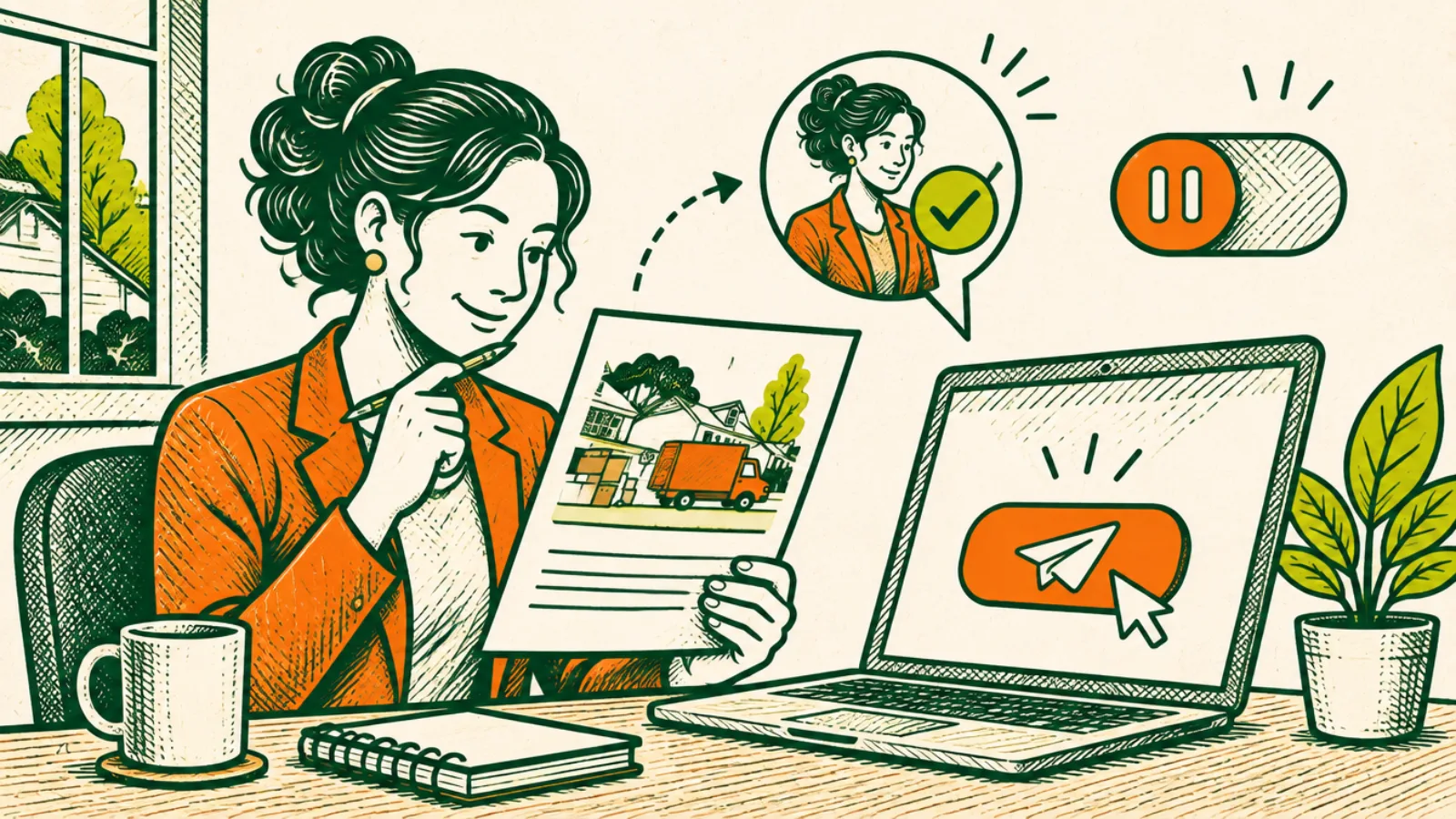
Here’s how this can play out for a one-person home organizing business. It’s an illustration, not a client story.
The week’s list showed the owner spending time on: answering inquiries across text, Instagram DMs and email, going back and forth on appointment times, sending invoices from scratch, chasing late payments, and hunting for before-and-after photos.
What scored highest: inquiries (daily, same questions, low risk), scheduling (several times a week, clear trigger) and receipts and invoices (weekly, same steps, but money involved).
First three automations:
- One inquiry form with the five questions they always asked, an automatic confirmation email, and every entry landing in a tracker.
- A booking link with real availability and an email reminder the day before. Text reminders only for clients who opted in when booking.
- An invoice template with automatic reminders for overdue invoices, and an email rule that files every receipt in one folder.
What stayed manual: quotes, reschedules with special requests, and any complaint. The owner also turned on MFA for the form, calendar and invoicing tools.
The handoff: a one-page document listing each automation, where it lives and how to pause it.
How to tell if it’s working
Skip the vanity numbers. After a month, look at:
- Time: go back to your Step 1 list. Did the tasks you automated actually take less time?
- Misses: fewer lost inquiries, forgotten follow-ups or late invoices?
- Errors: anything go out wrong? If so, tighten the checklist or add a review step.
- Customer experience: did people get faster, clearer answers?
If an automation creates more checking than it saves, simplify it or turn it off.
Your automation checklist
Before any tool
- ☐ One normal week of tasks written down
- ☐ Each task scored: repeats, same steps, low risk, clear trigger
- ☐ Top two or three written as checklists: trigger, steps, exception
While setting up
- ☐ MFA on every tool
- ☐ Each tool given only the access it needs
- ☐ Permission to text asked and recorded, with an easy way to stop
- ☐ Marketing emails with your address and a working opt-out
- ☐ Review requests neutral, with no reward tied to a good review
After launch
- ☐ An owner named for each automation
- ☐ An exception path written down
- ☐ A monthly check on what went out
- ☐ A handoff document: what it does, where it lives, how to pause it

Common mistakes
- Buying a tool first. Start with the list and the checklist.
- Automating a broken process. Fix the steps, then automate them.
- Automating everything at once. Two or three wins first, then build.
- No exception path. Real customers don’t always fit the rules.
- Texting without recorded permission. Consent rules depend on the message and technology, and marketing texts face stricter rules. Ask, record the yes, and make stopping easy.
- Marketing emails without an address or opt-out. CAN-SPAM requires both.
- Rewarding only good reviews. The FTC bans rewards tied to sentiment. Any incentive should be disclosed, and some platforms ban incentives entirely.
- Skipping MFA on the tools that hold customer and payment information.
- No one owns it. An automation nobody checks eventually goes wrong quietly.
When to get help
Plenty of businesses can do this themselves with the steps above. If you’d rather have help mapping the week, writing the checklists or setting up the first automations, that’s the kind of bounded project I take on through Work With Me. You describe what you’re trying to do, I reply in writing, and you get a written scope and fixed price before any work starts. Every project ends with a documented handoff so you can run it without me. I don’t build customer-facing bots that run on their own.
FAQ
What should a small business automate first?
The tasks that repeat often, follow the same steps, are low-risk if something goes slightly wrong and have a clear trigger. For many businesses that’s intake forms, scheduling and reminders, invoices and receipts, backups and follow-ups.
Do I need AI to automate my business?
No. Most useful automations are forms, templates, reminders, rules and scheduled tasks. AI tools can help with drafting and sorting, with a person reviewing what goes out.
Do I need permission to send automated text reminders?
Get and record permission either way. The FCC says autodialed or prerecorded calls and texts to a wireless number need the person’s consent, and marketing messages face stricter rules than informational reminders. People can opt out at any time in any reasonable way.
What do marketing emails need under CAN-SPAM?
The FTC says accurate header information, an honest subject line, a clear notice that it’s an ad, your valid physical postal address and a clear way to opt out, with opt-outs honored within 10 business days.
Can I offer a discount for a review?
Sometimes, for an honest review. The FTC says an incentive must never be conditioned, explicitly or implicitly, on the review being positive or negative, and the review should disclose the incentive. Some platforms prohibit incentivized reviews altogether, so check their rules first.
How long should I keep business records?
The IRS says 3 years after filing in most cases, with longer periods in some situations: at least 4 years for employment tax records after the tax is due or paid, whichever is later, 6 or 7 years in specific cases, property records until the period runs out for the year you dispose of the property, and indefinitely if you don’t file or file a fraudulent return. Insurers or creditors may require longer.
What security should I set up when automating?
Turn on multifactor authentication for every tool, give each tool only the access it needs, keep software updated and back up important files, per CISA and FTC guidance.
What shouldn’t I automate?
Pricing, refunds, complaints, anything that sounds like legal, medical, tax or financial advice, promises to customers, and customer-facing bots without a person reviewing.
Sources
Checked November 10, 2026:
- FTC: CAN-SPAM Act Compliance Guide for Business
- FTC: Final Rule Banning Fake Reviews and Testimonials (August 2024)
- FTC: Soliciting and Paying for Online Reviews: A Guide for Marketers
- FTC: Consumer Reviews and Testimonials Rule: Questions and Answers
- FTC: Cybersecurity Basics for Small Business
- FCC: Stop Unwanted Robocalls and Texts
- IRS: How Long Should I Keep Records?
- CISA: Require Multifactor Authentication